 Beautiful.ai
SlidesGPT vs Beautiful.ai
One lets you judge a finished deck before paying. The other asks for a card before it shows you a single slide.

Benjamin Spinola, Co-Founder · SlidesGPT
Published July 3, 2026 · Updated August 13, 2026 · 7 min read
A hands-on comparison of SlidesGPT and Beautiful.ai, based on our own test deck run through both tools in August 2026 alongside each tool's public documentation.
Beautiful.ai and SlidesGPT both help non-designers produce a clean deck quickly, but they sit at different points on price and output. Beautiful.ai is built around "Smart Slides": adaptive templates that keep spacing and alignment consistent as you add content inside its web app.
SlidesGPT is free to start and is built to hand you an editable PowerPoint, Google Slides, or Keynote file. Beautiful.ai has no standing free plan and reserves editable PowerPoint export for its paid tiers, so the two differ most on how you evaluate the tool and how you get your file out.
SlidesGPT vs Beautiful.ai at a glance
| Feature | SlidesGPT | Beautiful.ai |
|---|---|---|
| Free to start | Yes. Generate and preview a full deck for free | No. Signing up drops you on a plan-selection wall with no skip and no free option; you pick a plan and start a card-backed trial before you reach the editor |
| Editable PowerPoint export | Native, editable .pptx on the Pro plan; also Google Slides and Keynote | Available, and layouts survive, but it is not the default and it is not fully editable: charts arrive as pictures you cannot update |
| Does the file stand alone? | Yes. Open the .pptx anywhere and edit it | Editable export prompts you to download and install its fonts first, so the deck can reflow on a machine that lacks them |
| Input sources | Text prompt, PDF, and YouTube | Text prompt inside the Beautiful.ai editor |
| Layout model | Standard editable slides you control fully | Smart Slides place elements by internal rules, which limits free-form layout |
| Best for | People who want a free start and an editable file | Brand-conscious teams that present inside the Beautiful.ai app |
What SlidesGPT and Beautiful.ai cost
Prices as we saw them in August 2026. The row that matters is the last one: the cheapest plan that hands you a PowerPoint whose text you can actually edit.
What the free tier gives you
- SlidesGPT
- Generate and preview full decks, no export
- Beautiful.ai
- None. Sign-up lands on a plan wall with no skip and no free option
Cheapest plan with an editable PowerPoint
- SlidesGPT
- Pro at $7.49 a month billed annually ($89.99 a year)
- Beautiful.ai
- Pro at $12 per user a month, billed annually
What you actually get in that file
- SlidesGPT
- Editable PowerPoint, Google Slides and Keynote, 10 downloads a month
- Beautiful.ai
- Layouts survive, but charts arrive as pictures
Metered by credits?
- SlidesGPT
- No credits. Pro is capped in decks, not tokens: 10 downloads a month
- Beautiful.ai
- No. Its pricing page promises unlimited AI content generation on every plan
What one deck actually costs
- SlidesGPT
- $0.75 a deck, if you use all ten ($7.49 ÷ 10)
- Beautiful.ai
- $12 per user a month flat, however many decks
Currency we were shown
- SlidesGPT
- USD
- Beautiful.ai
- USD
Checked August 2026 from each vendor's own pages and, where we had an account, from inside the product. Credit allowances come from each vendor's published pricing; where we could measure consumption ourselves we say so. Several vendors set prices by region, so what you see may differ from what we saw.
Compare all nine on priceWe built the same deck in Beautiful.ai
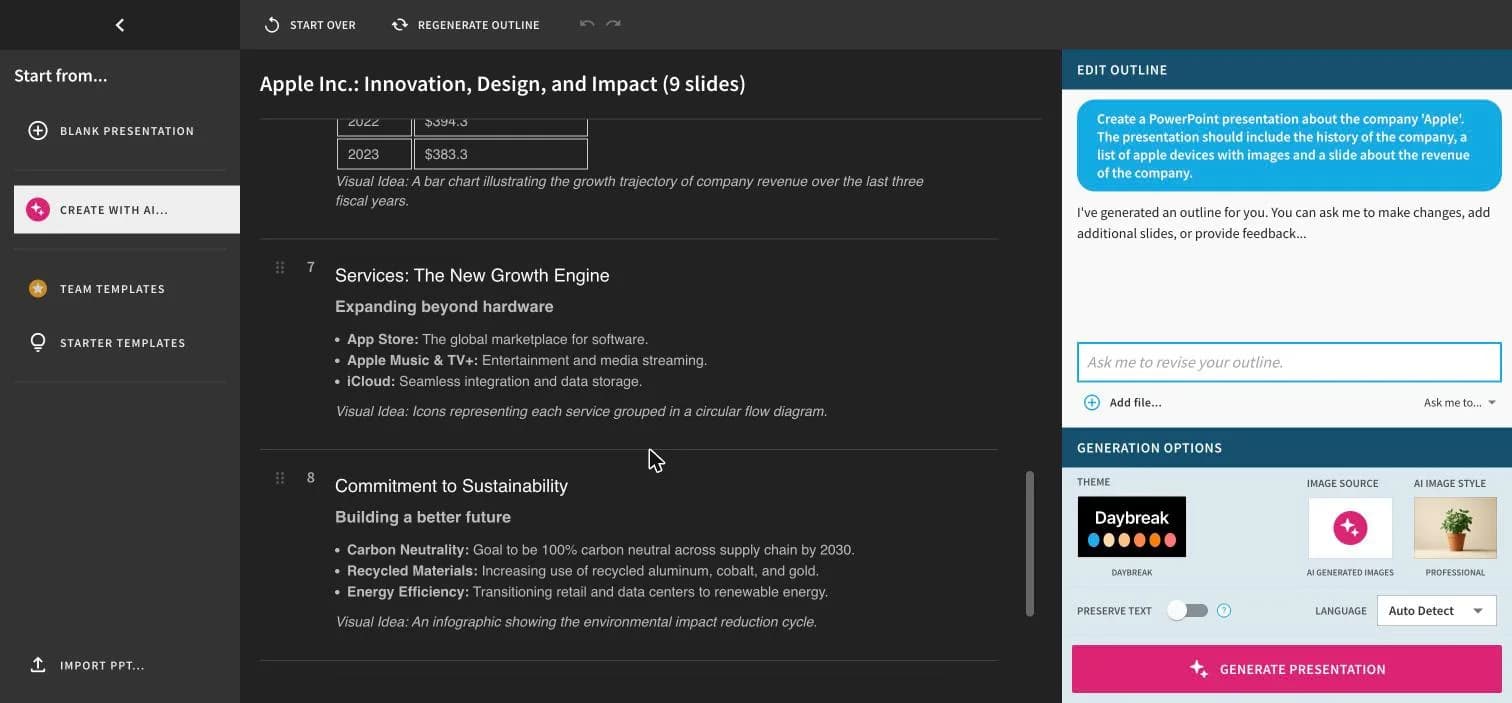
We put the same brief through Beautiful.ai in July 2026, on a Pro trial, and recorded each step. It is the identical brief we used for ChatGPT and Gamma, so all three are directly comparable.
Create a PowerPoint presentation about the company 'Apple'. The presentation should include the history of the company, a list of apple devices with images and a slide about the revenue of the company.
One sentence, with no audience or tone specified. It is not the way to get the best out of any of these tools; it is what a first-time user typing a single line actually gets.
You meet a wall before you see a slide
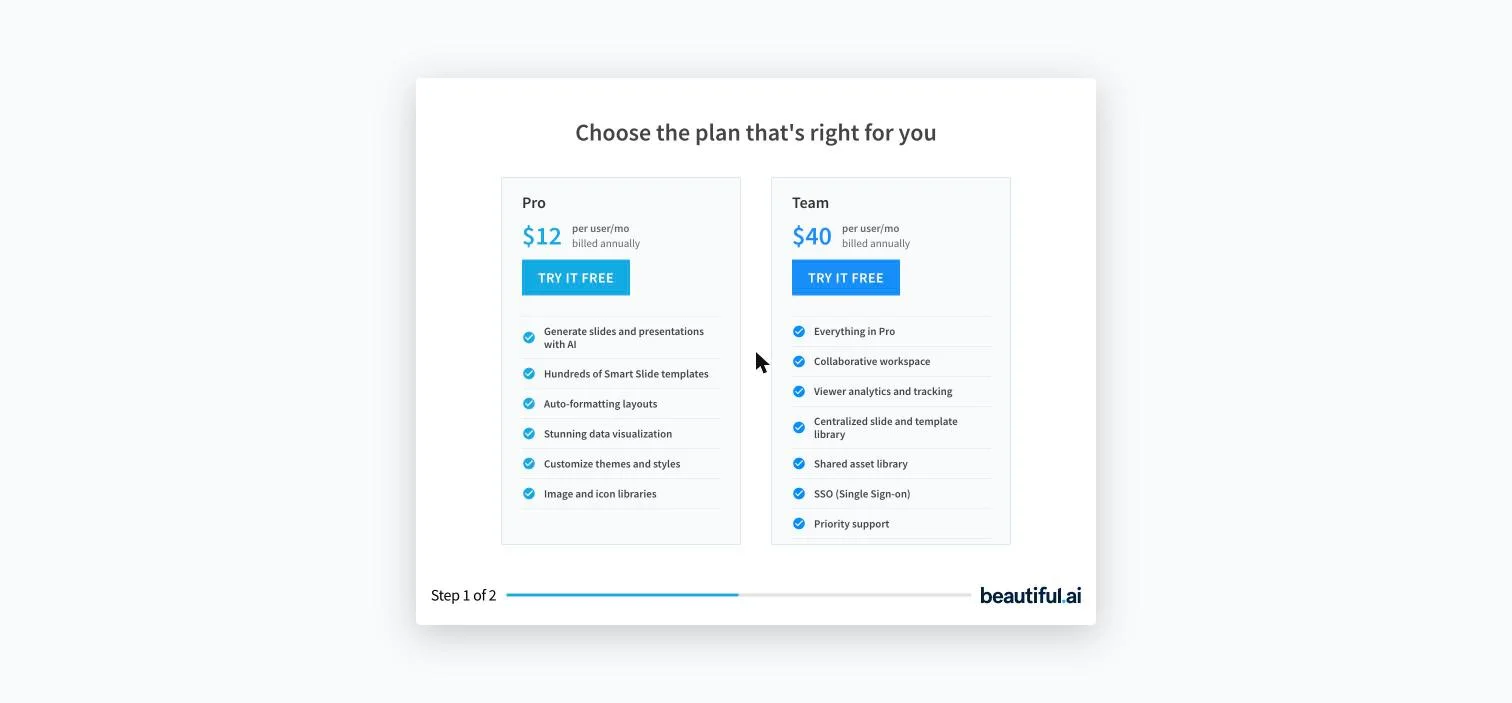
Beautiful.ai does not let you look first. A new account lands on a plan-selection screen headed "Choose the plan that's right for you", offering Pro at $12 per user per month and Team at $40, both billed annually. The screen has exactly two buttons, both labelled TRY IT FREE. There is no skip, no close, no free tier, and no way through to the editor without picking a plan and starting a card-backed trial that renews into a paid subscription. You are asked to commit before you can judge a single generated slide.
The outline stage is a strong point
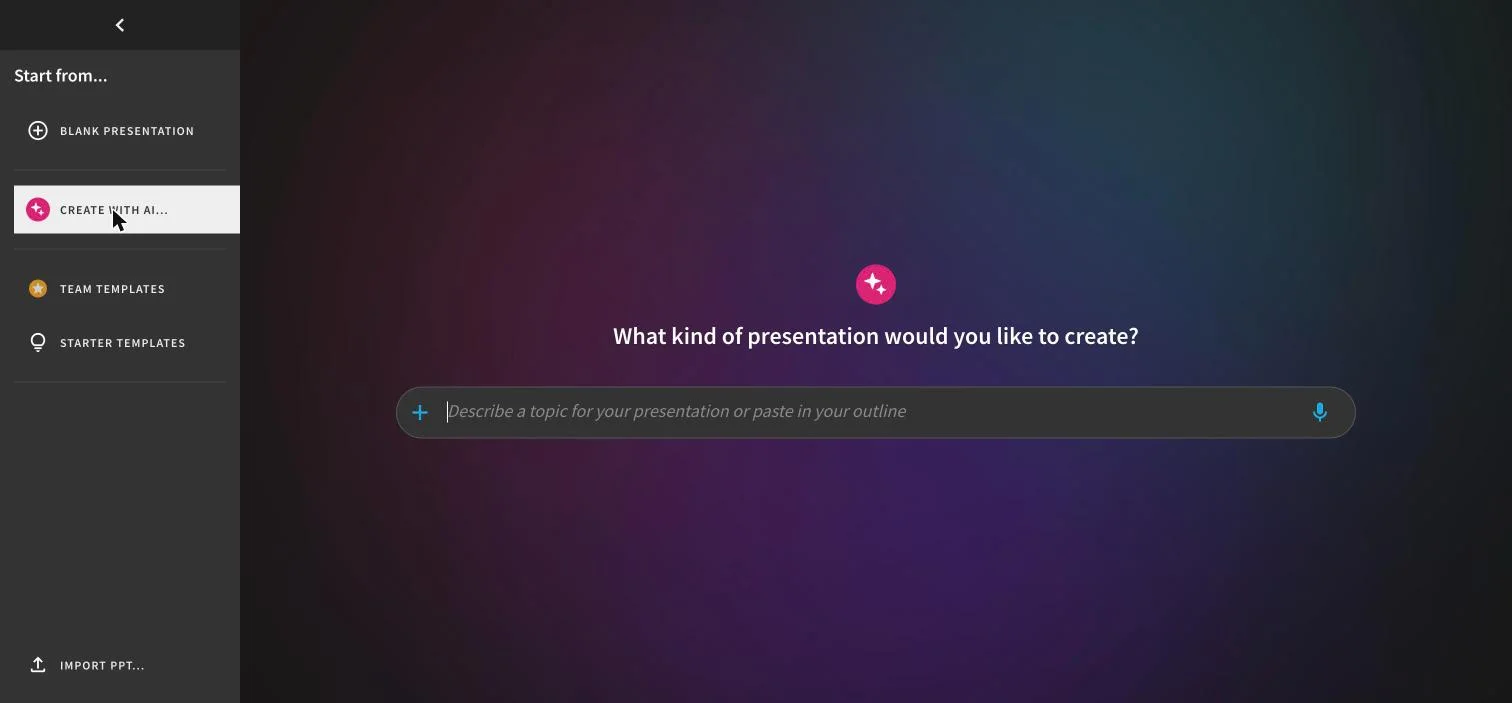
Once inside, the outline step does its job well. It produced a nine-slide outline with accurate history, annotated each slide with a Visual Idea describing the intended imagery, and put real figures in the revenue slide as a table (2022 at $394.3bn, 2023 at $383.3bn) rather than prose. You can also revise it conversationally before generating, which is a nice touch on a step most tools treat as fixed.
The deck is corporate rather than illustrated
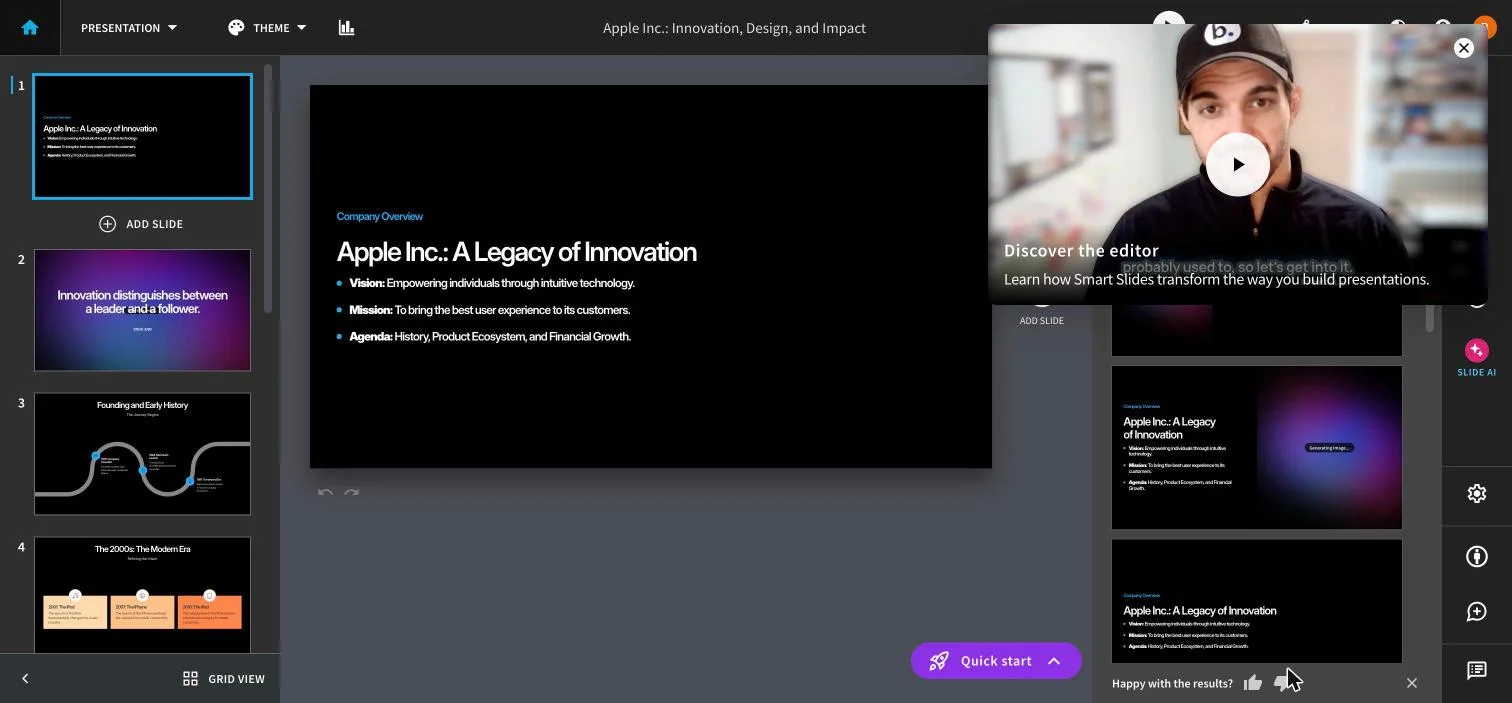
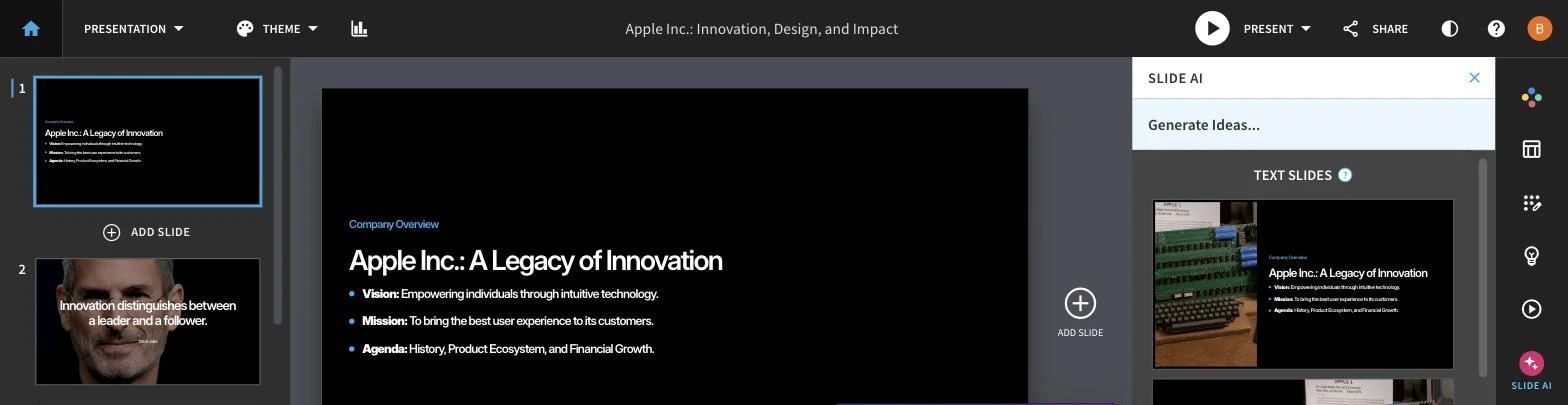
The generated slides lean on structure instead of big artwork: a milestone timeline for the founding years, a three-card layout for the 2000s, a photographic quote slide. That is the Smart Slides system doing its job, and for a business audience it reads more like a consulting deck than Gamma's illustrated style. Neither is better in the abstract; they suit different rooms.
The export screen sets expectations early
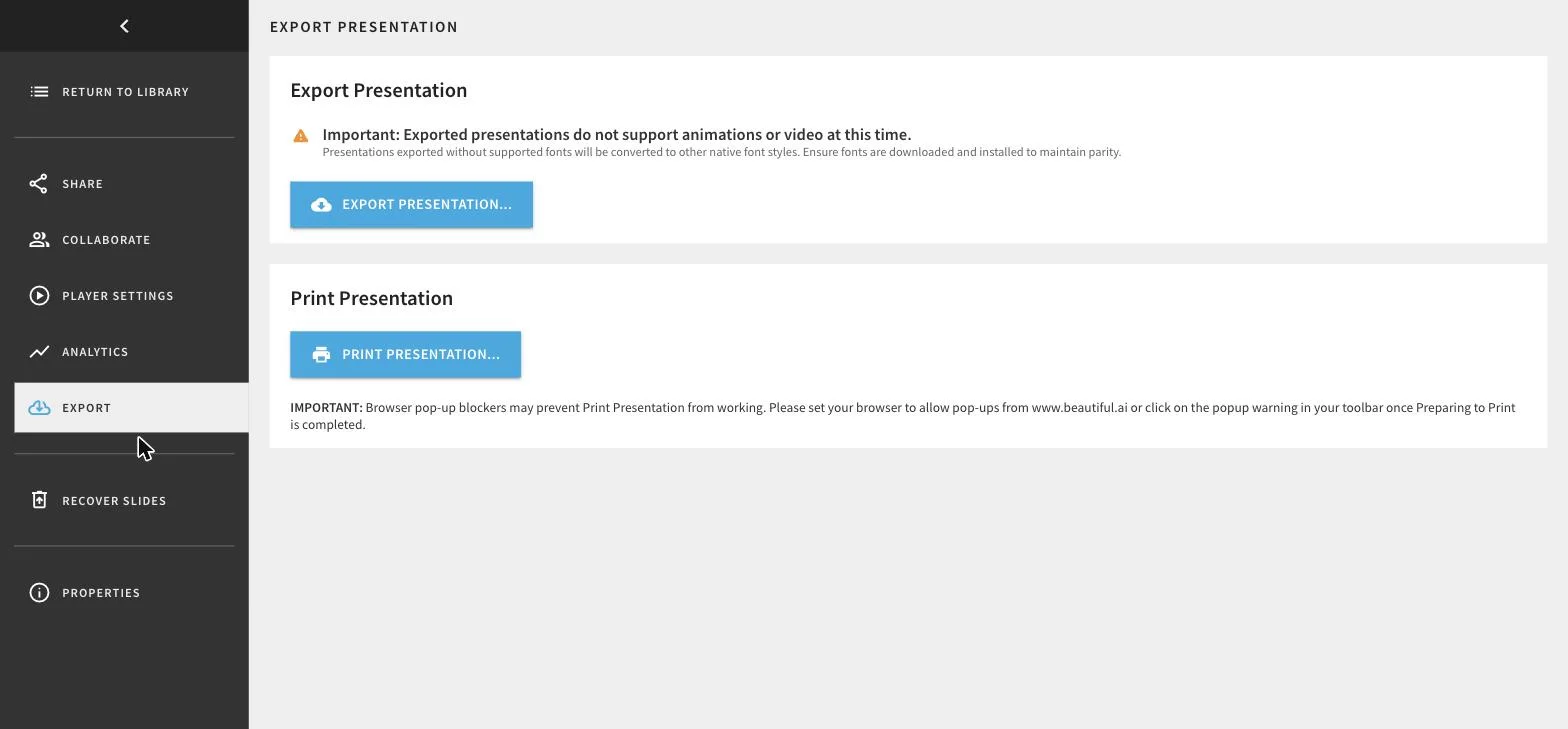
Before you choose a format, Beautiful.ai warns you in its own words that exports lose motion, and that fonts will be swapped unless you have them installed locally:
Important: Exported presentations do not support animations or video at this time. Presentations exported without supported fonts will be converted to other native font styles.
PowerPoint export defaults to flat images
This is the detail that matters most for a PowerPoint generator. Choosing PowerPoint reveals two radio buttons, and the one pre-selected is "Export as images". Accept the default and every slide in your .pptx arrives as a picture: nothing to edit, no text to fix, no chart to update. Editable output is the second option, and it is labelled with its own caveat that you may notice minor formatting differences.
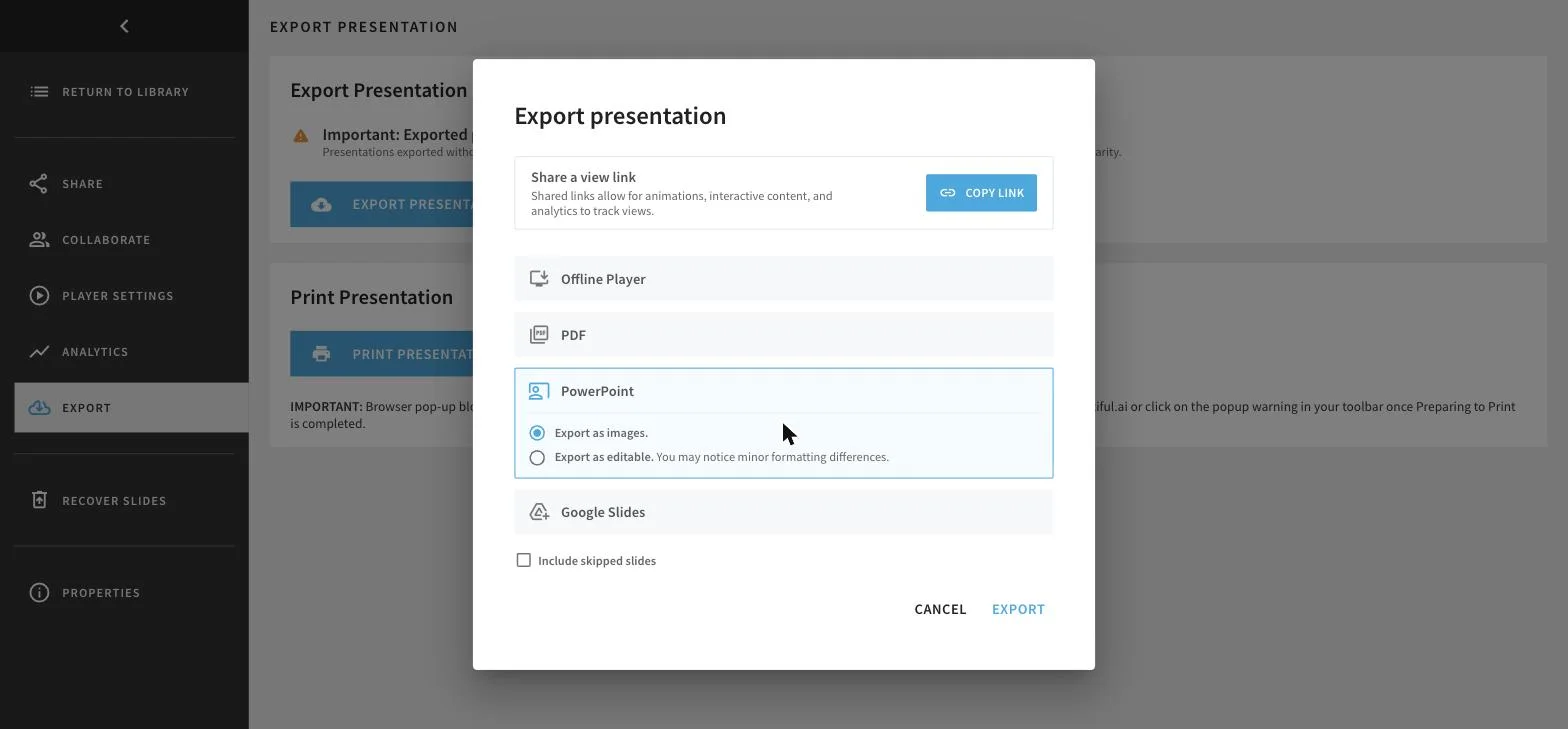
And the editable file is not self-contained
Select the editable option and a further checkbox appears, ticked by default: Download fonts, install before opening your presentation. So the honest description of an editable Beautiful.ai export is a file that expects you to install typefaces on your machine before it looks right. Hand that deck to a colleague who has not done the same and the fonts substitute, which is exactly the reflow the export screen warned about.
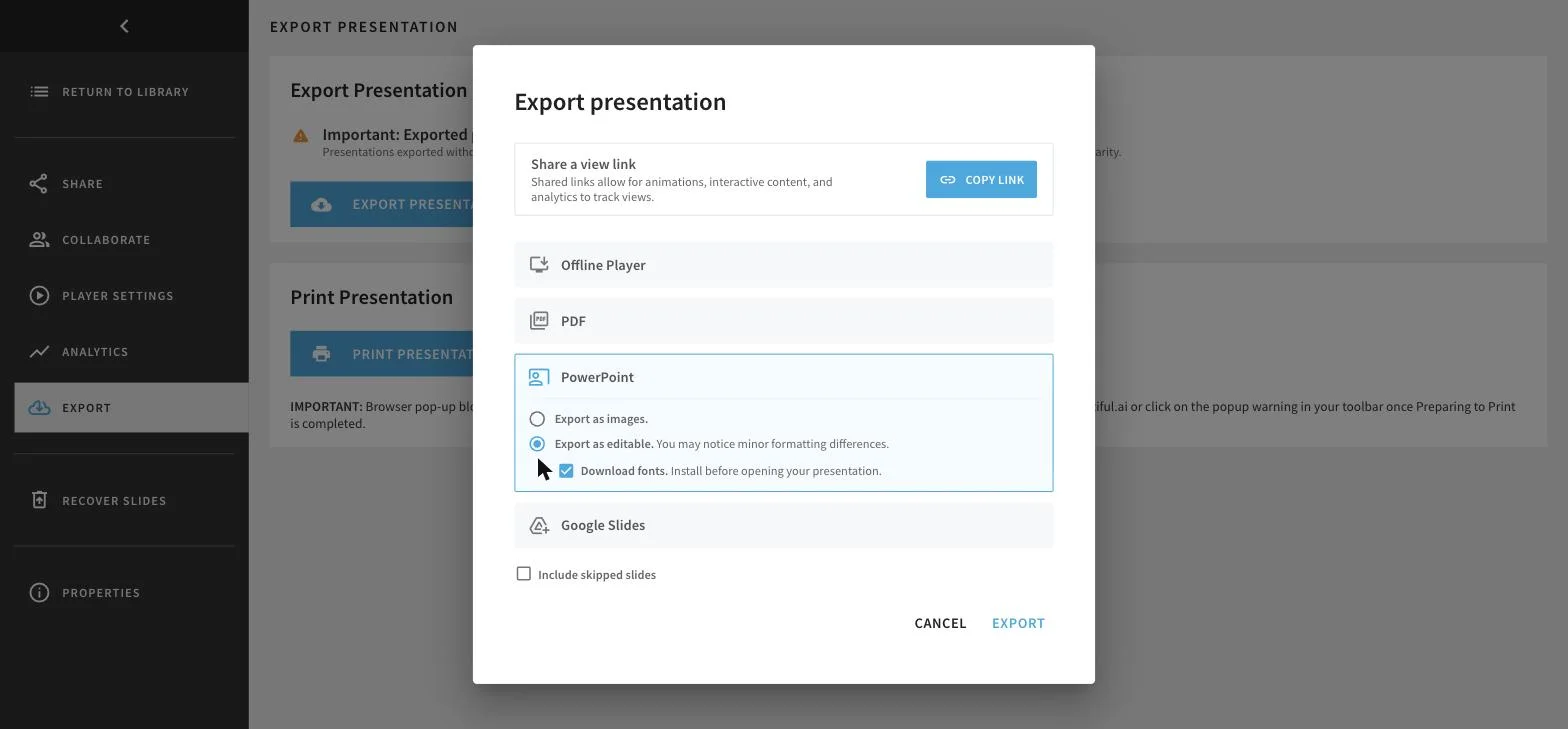
Choose editable, and it looks right
If you do notice the second radio button, the deck that opens in PowerPoint looks close to what you approved. The milestone timeline, the card layout, the quote slide and the product photography are all there, and no slide carries a watermark. Looking right and being editable are not the same thing, though, and the revenue slide is where the two come apart.
The chart is a picture
Open the revenue slide and the chart is there, and it looks correct. Click it and nothing happens. It is an image, so you cannot correct a figure, add next quarter, or restyle a column. When the numbers change you rebuild the slide by hand, on the one slide where numbers are most likely to change.
Why that is a choice, not a limit
This is worth explaining, because a PowerPoint file is not a sealed box. A .pptx is a set of small files zipped together [Office Open XML], and a real chart is just a short description of the chart plus a tiny spreadsheet holding its numbers [an embedded workbook]. Common off-the-shelf libraries write both for you, and Beautiful.ai already had the figures, because it put them in the outline as a table before it drew anything. There is a genuine trade behind it. Turning a chart into a picture guarantees it looks exactly as designed, because nothing can redraw it. Handing over a real chart means PowerPoint draws it again, so very custom styling may not survive perfectly. For a revenue slide the second is almost always the better trade: the recipient needs to change the numbers more than they need the bars to sit a pixel from where the designer left them.
What that means in practice
Put together, the friction is front and back. You cannot see any of this before handing over a card. The export then defaults to flat images unless you notice the second radio button, the editable file expects you to install fonts before it renders as intended, and even that file hands you the chart as a picture. SlidesGPT lets you generate and preview a full deck for free, defaults to a real editable file, and needs no font installation for the download to match the preview.
What Beautiful.ai does well
Beautiful.ai is a polished product with a loyal business following, and it is rated highly by paying users. Its Smart Slides system reliably produces consistent, on-brand decks without design skill, and its team features, shared libraries, and analytics suit organizations that standardize on it. If keeping every deck on-brand matters more than free-form control, Beautiful.ai does that well.
- Smart Slides keep decks consistent and on-brand automatically
- Team collaboration, shared libraries, and analytics
- Clean layouts in export, and no watermark on the file
Where SlidesGPT is different
The clearest difference is access. SlidesGPT lets you generate and preview a complete deck for free, so you can judge the result before paying. Beautiful.ai has no standing free plan; its trial needs a card and renews into an annual subscription. Both reserve editable export for paid plans, but SlidesGPT is built around a high-fidelity, editable file as the deliverable rather than steering you to present inside the app. SlidesGPT also builds from a PDF or a YouTube link, not only a prompt.
Which should you choose?
Choose Beautiful.ai if your priority is automatic brand consistency for a team that will live inside its editor. Choose SlidesGPT if you want to try a full deck for free, need an editable PowerPoint or Google Slides file, or want to start from a document or a video.
FAQ
Generate your first deck
Turn a topic, a document, or a YouTube link into a structured presentation, then preview the full deck before you decide. Free to start.
Create a presentation