
 ChatGPT
SlidesGPT vs ChatGPT
A general assistant that can draft slide content, and a tool built to turn that content into a finished, editable deck.

Benjamin Spinola, Co-Founder · SlidesGPT
Published November 5, 2024 · Updated August 13, 2026 · 7 min read
A hands-on comparison of SlidesGPT and ChatGPT, based on our own test deck run through both tools in August 2026 alongside each tool's public documentation.
This is the one comparison where the two tools are not really rivals. ChatGPT is a general-purpose assistant: ask it for a presentation and it will write you an excellent outline, strong talking points, and slide-by-slide copy. What it does not naturally hand you is a designed, formatted PowerPoint file.
SlidesGPT is built for that last step. It takes a topic, a document, or a YouTube link and produces a structured deck with layouts, then exports it as an editable PowerPoint, Google Slides, or Keynote file. In fact the two work together: SlidesGPT runs inside ChatGPT as an app, so you can stay in the chat and still get a real deck out.
SlidesGPT vs ChatGPT at a glance
| Feature | SlidesGPT | ChatGPT |
|---|---|---|
| What you get back | A structured, designed deck you can preview slide by slide, then export | In our test, a downloadable .pptx of 11 slides, but with no real design system |
| Editable PowerPoint file | Native, editable .pptx on the Pro plan; also Google Slides and Keynote | Can produce a basic .pptx via its code tool, but layout and design are minimal |
| Design and layout | Applies slide layouts, hierarchy, and imagery automatically | No native slide design; formatting is left to you |
| Input sources | Text prompt, PDF, and YouTube | Text prompt and uploaded files |
| They work together | Runs inside ChatGPT as an app, and as a Claude connector | Hosts SlidesGPT so you can generate a deck without leaving the chat |
What SlidesGPT and ChatGPT cost
Prices as we saw them in August 2026. The row that matters is the last one: the cheapest plan that hands you a PowerPoint whose text you can actually edit.
What the free tier gives you
- SlidesGPT
- Generate and preview full decks, no export
- ChatGPT
- Writes slide content free, but you format it yourself
Cheapest plan with an editable PowerPoint
- SlidesGPT
- Pro at $7.49 a month billed annually ($89.99 a year)
- ChatGPT
- Plus at $20 a month
What you actually get in that file
- SlidesGPT
- Editable PowerPoint, Google Slides and Keynote, 10 downloads a month
- ChatGPT
- Its code tool can emit a basic .pptx; design is minimal
Metered by credits?
- SlidesGPT
- No credits. Pro is capped in decks, not tokens: 10 downloads a month
- ChatGPT
- No deck credits. Plus meters heavy model usage by message, not by presentation
What one deck actually costs
- SlidesGPT
- $0.75 a deck, if you use all ten ($7.49 ÷ 10)
- ChatGPT
- $20 a month flat, however many decks you attempt
Currency we were shown
- SlidesGPT
- USD
- ChatGPT
- USD
Checked August 2026 from each vendor's own pages and, where we had an account, from inside the product. Credit allowances come from each vendor's published pricing; where we could measure consumption ourselves we say so. Several vendors set prices by region, so what you see may differ from what we saw.
Compare all nine on priceWe ran the same prompt through both
Rather than argue from spec sheets, we gave both tools one identical, deliberately simple brief and kept everything they produced. The screenshots below are the actual slides.
Create a PowerPoint presentation about the company 'Apple'. The presentation should include the history of the company, a list of apple devices with images and a slide about the revenue of the company.
This prompt is deliberately basic. It is not the way to get the best possible deck out of either tool; it shows what a first-time user typing one sentence can expect. For a stronger result with SlidesGPT you would name the topic, the audience, and the tone, and optionally supply your own outline.
One practical note on ChatGPT: unless you explicitly ask for a downloadable presentation, it will often just hand back text for you to paste into PowerPoint yourself.
What ChatGPT produced
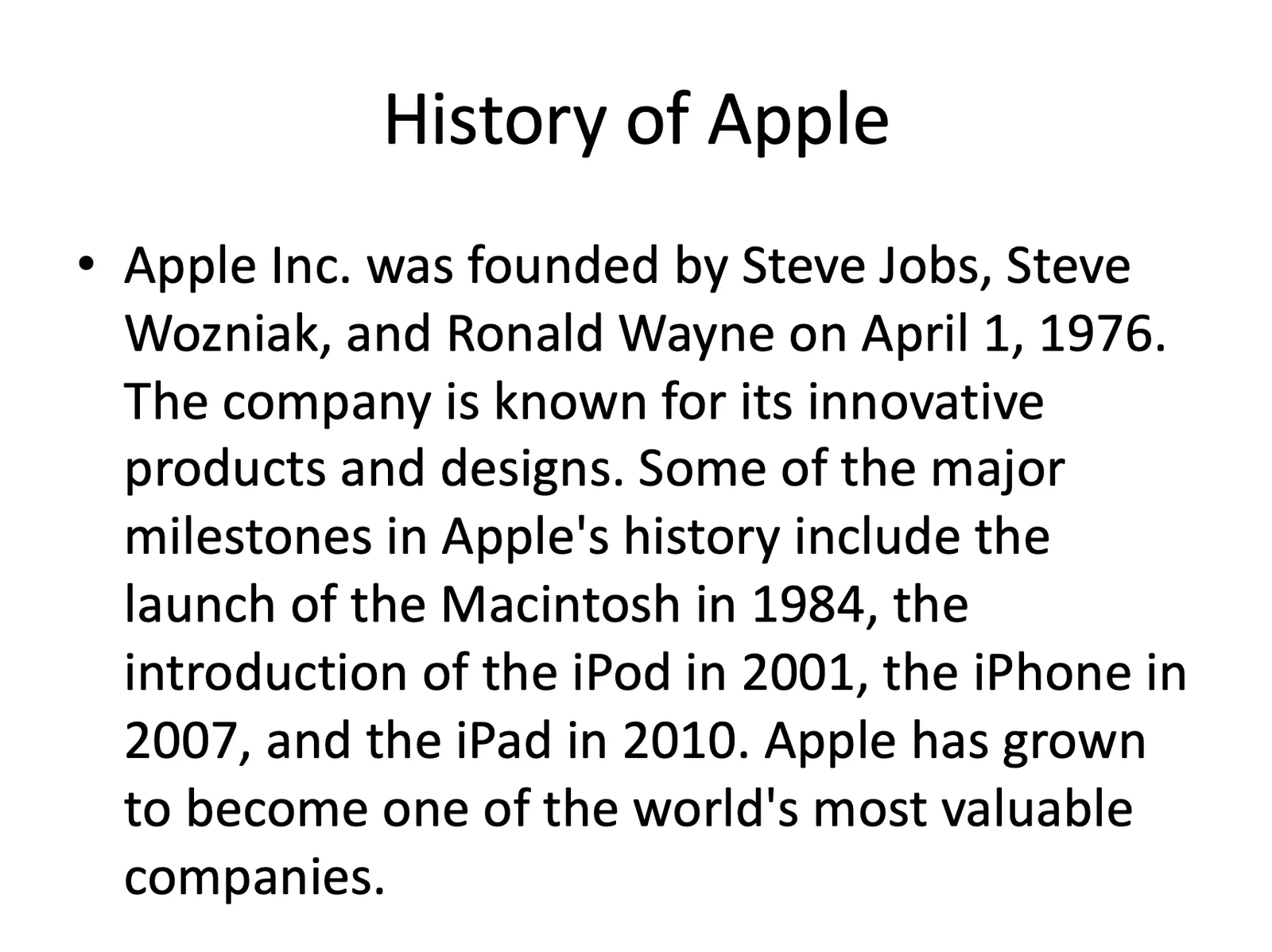
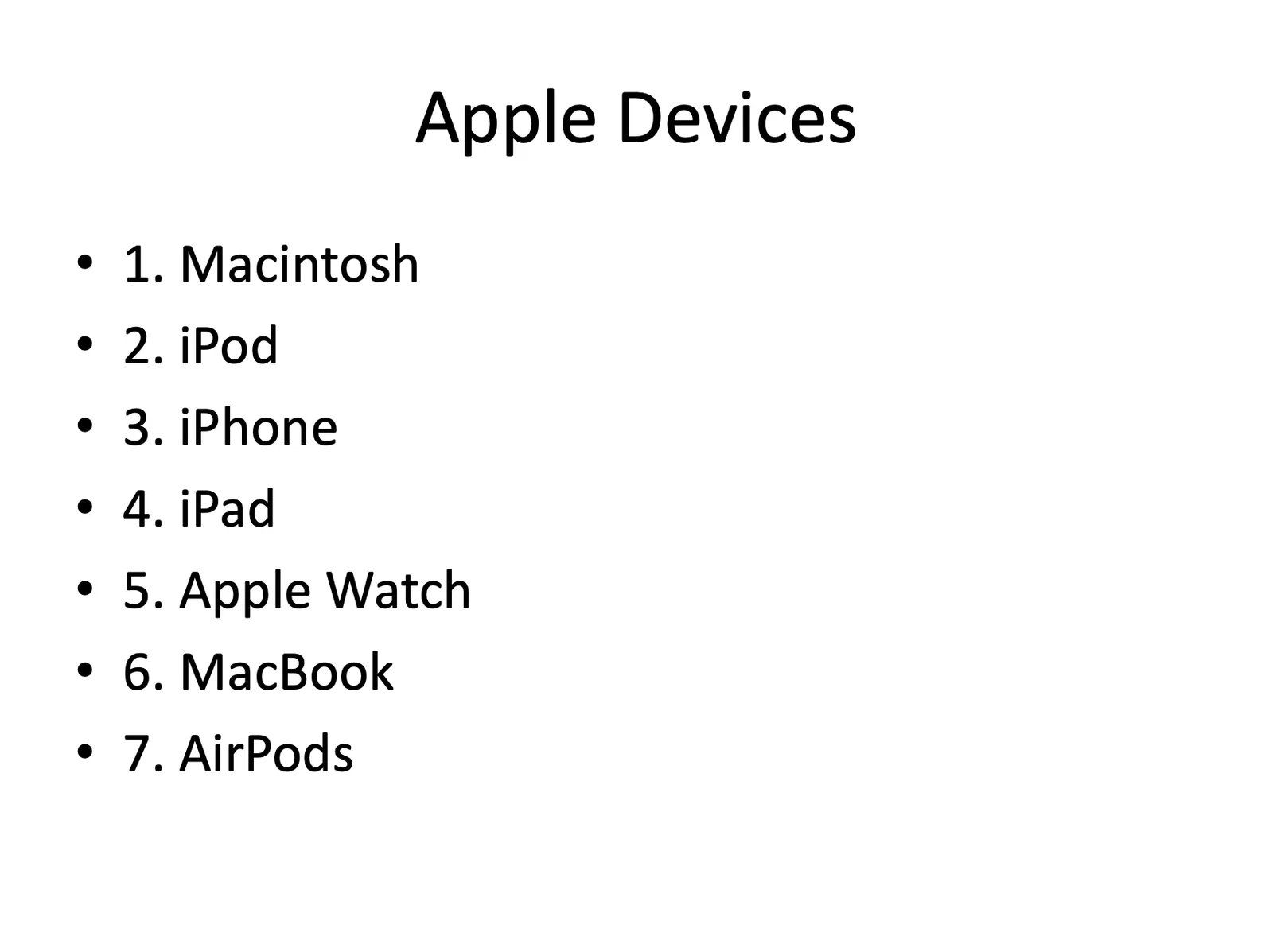
ChatGPT returned 11 fairly basic slides behind a download link. The cover, the company history, and the device list all arrived, but with no real design system: the "Apple Devices" slide nests a numbered list inside a bullet list.
Where the ChatGPT deck fell short
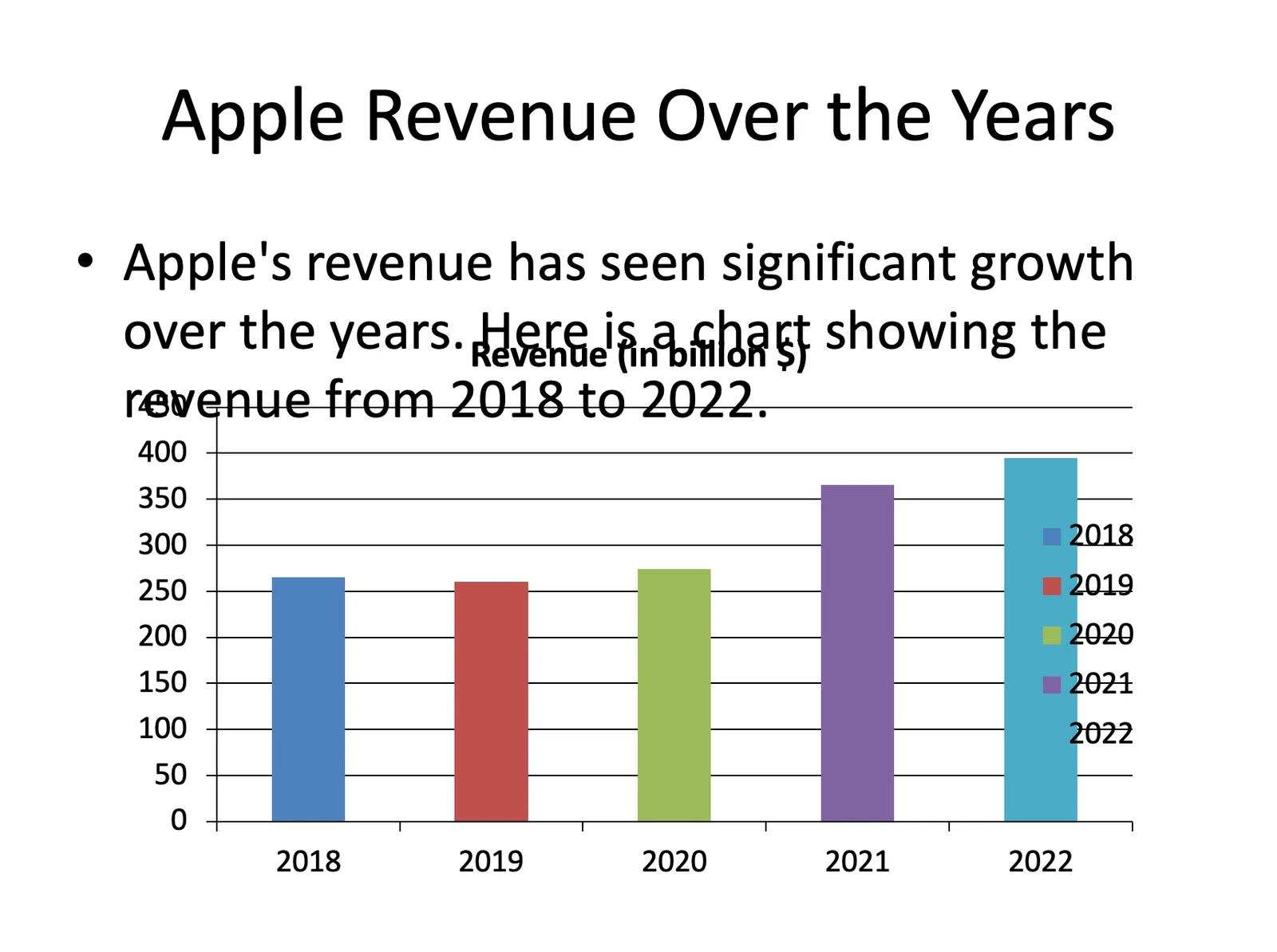
Most of the product slides came back with placeholder images rather than real pictures. The revenue slide did produce a chart, and the underlying data was accurate and editable in Excel, but the chart itself needed visual work before anyone could present it.
What SlidesGPT produced
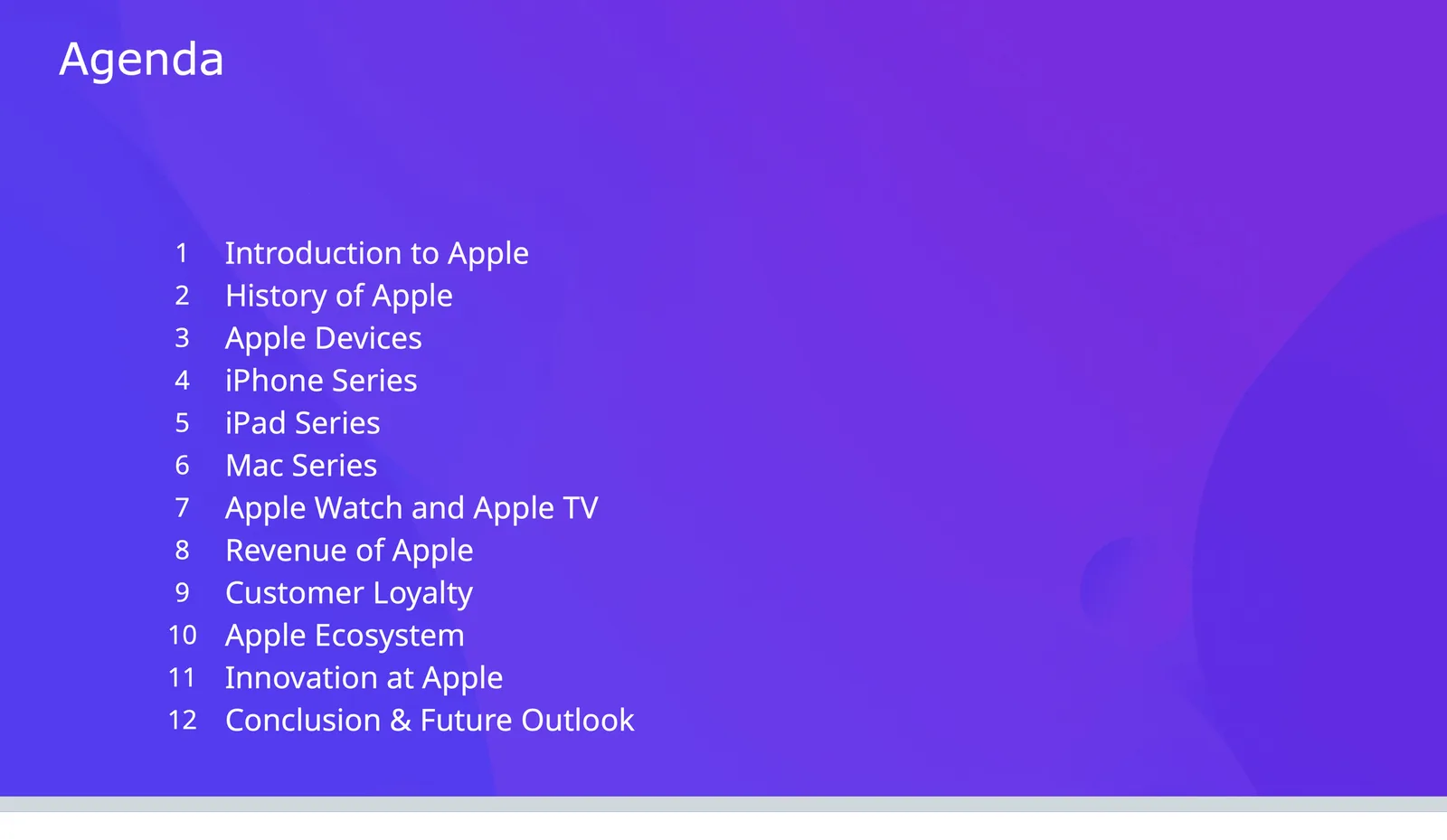
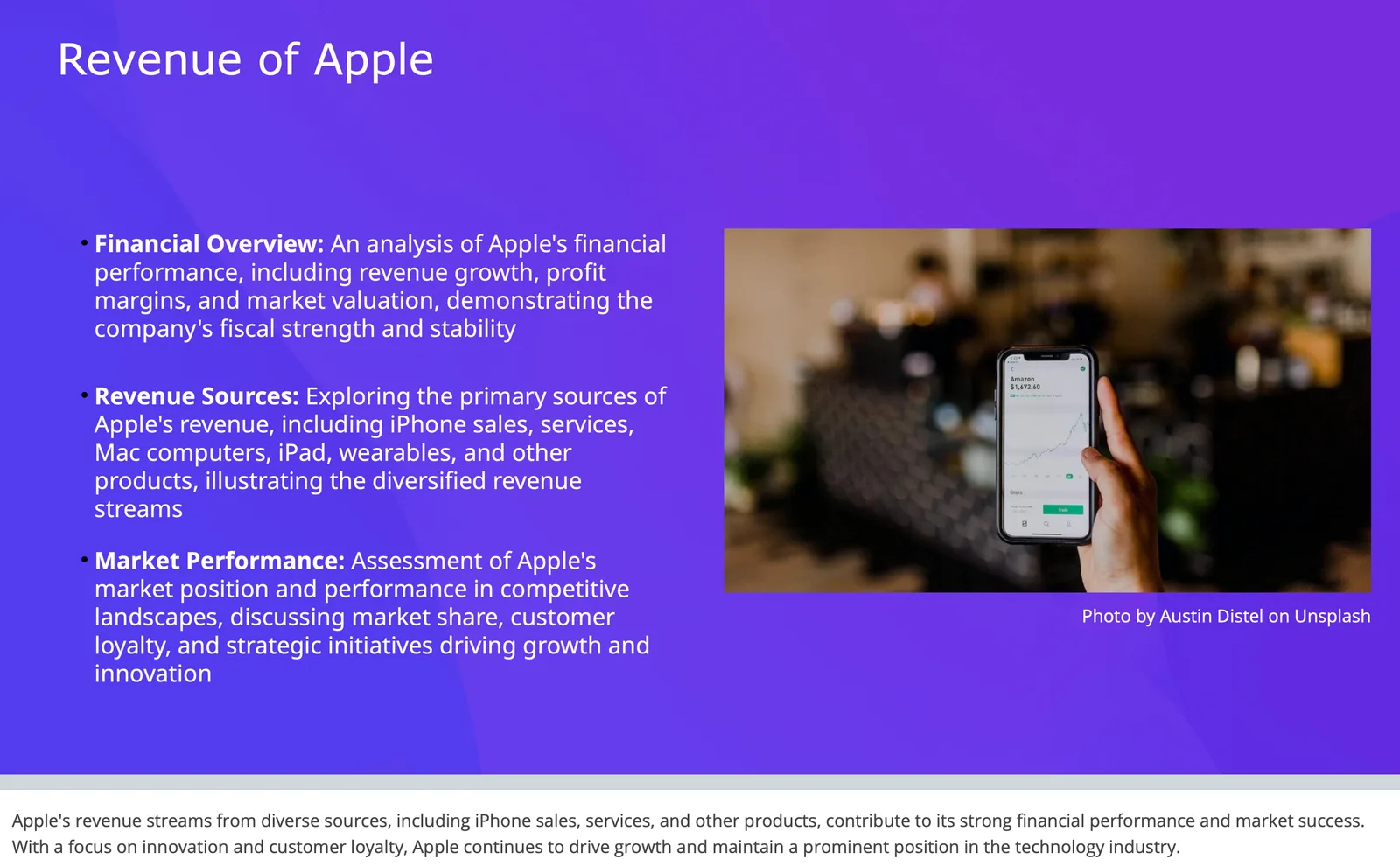
SlidesGPT returned 13 slides using the theme selected on the homepage. It added a cover, an agenda, and an introduction, and it wrote speaker notes underneath each slide.
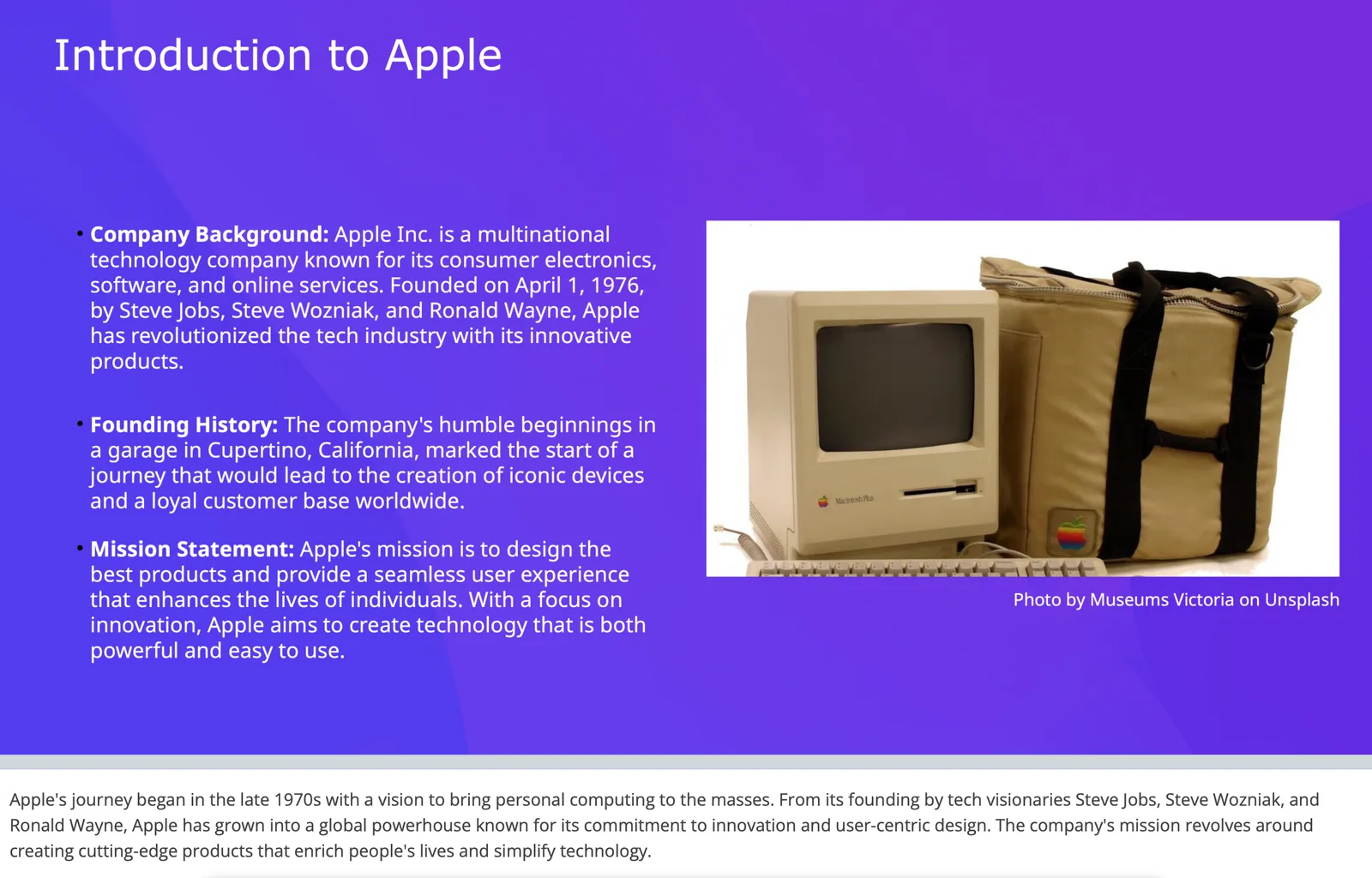
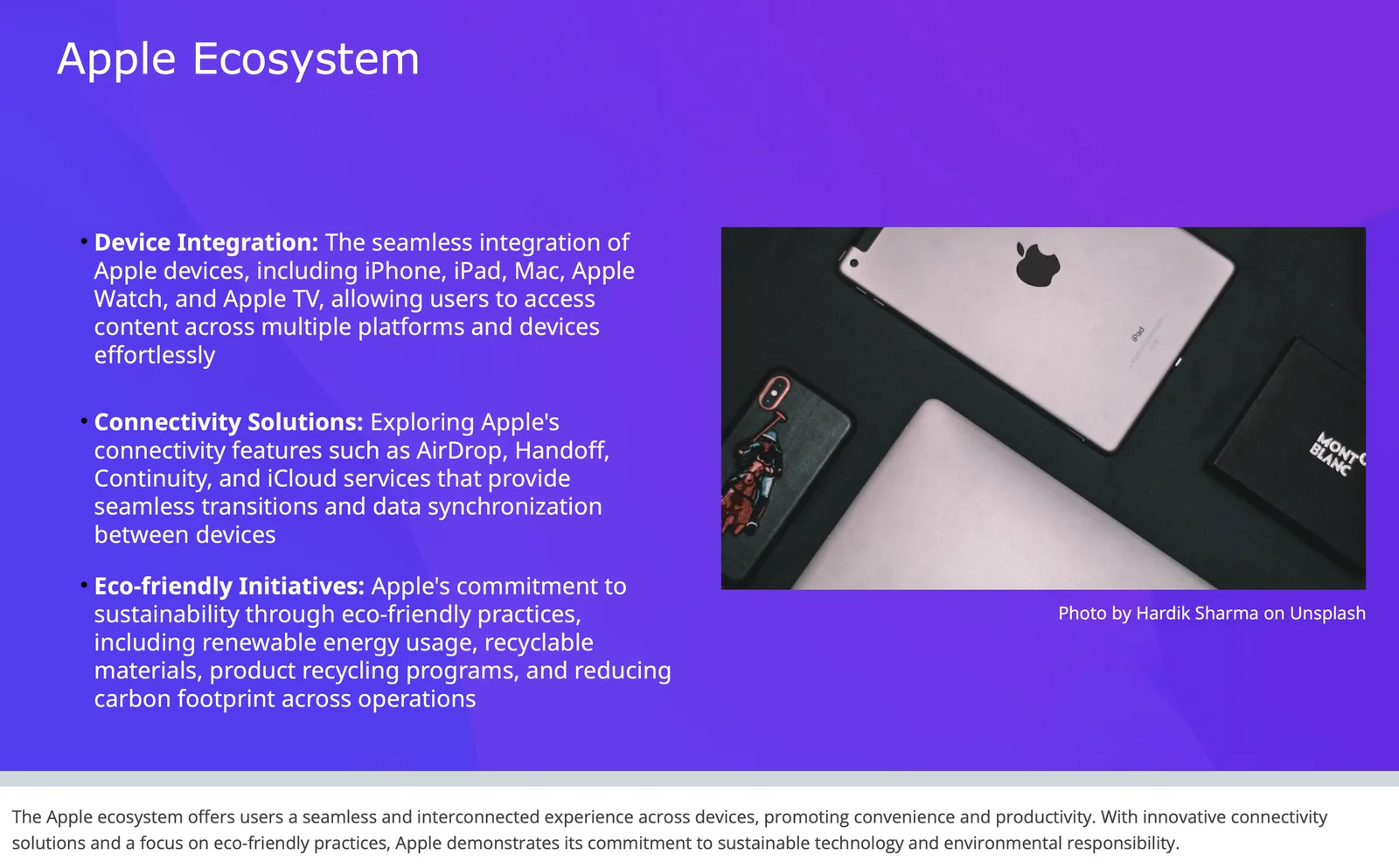
How SlidesGPT handled the product list
The brief asked for Apple devices, and SlidesGPT split them across slides, one product category at a time, instead of compressing them into a single list.
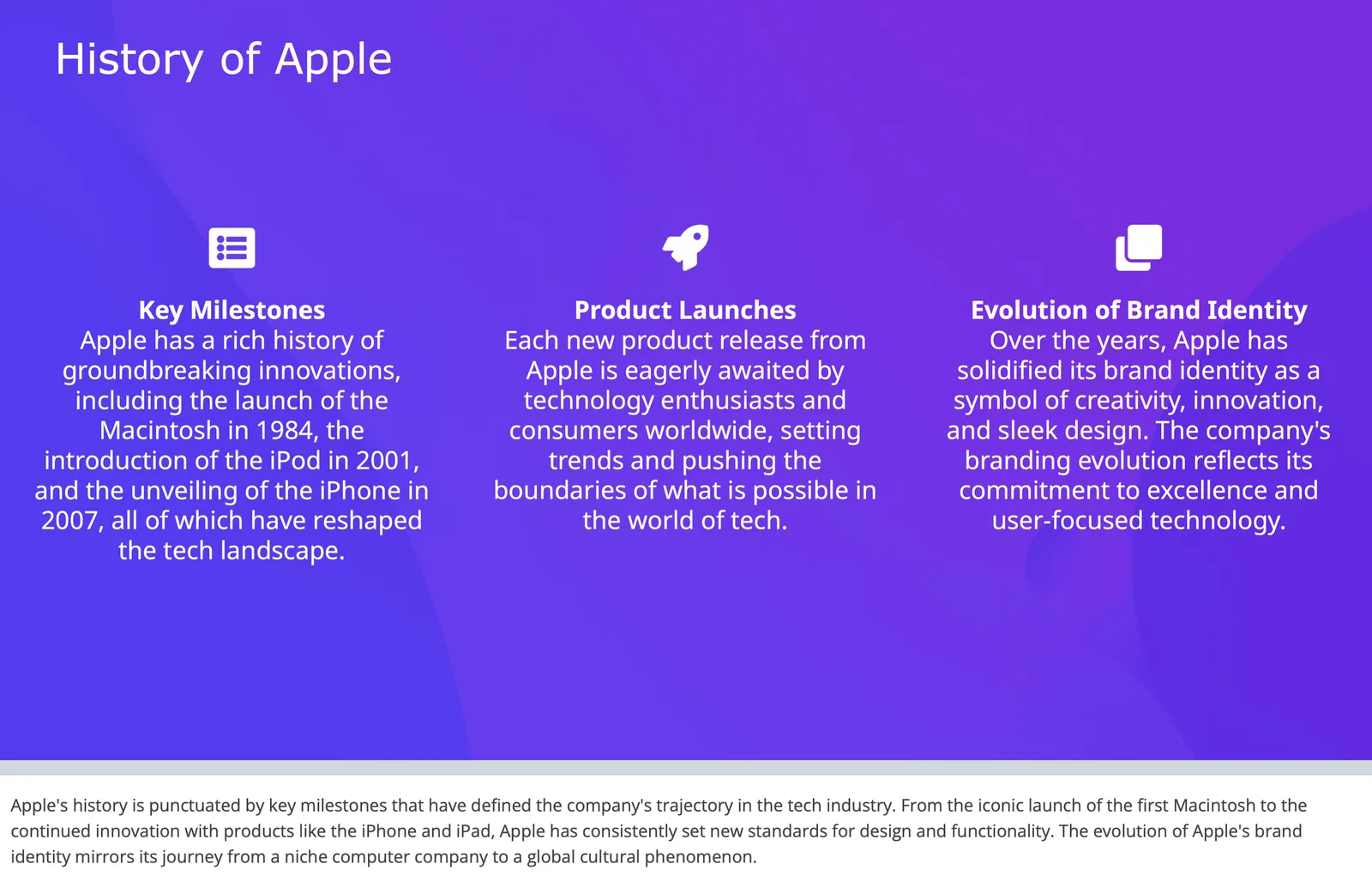
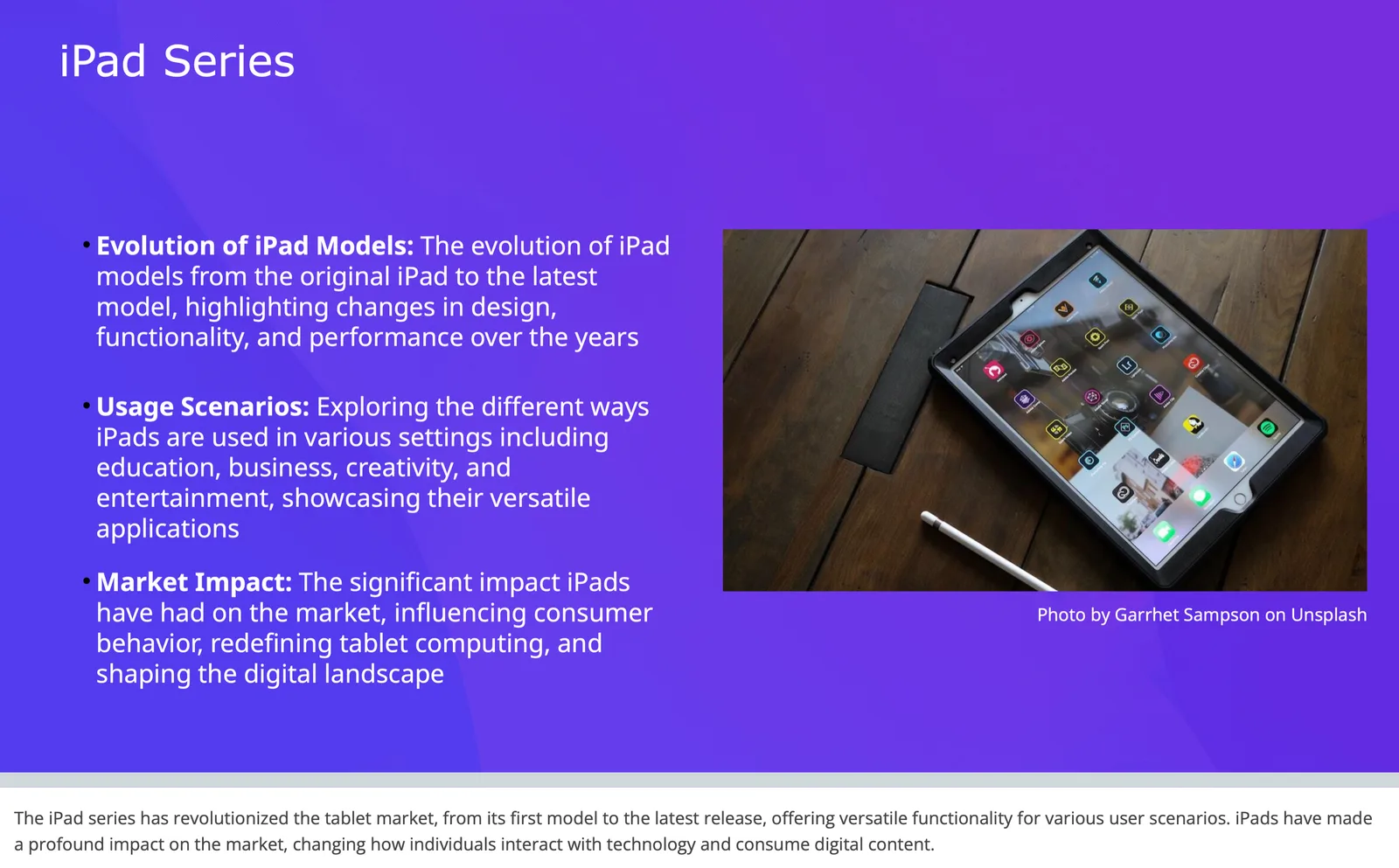
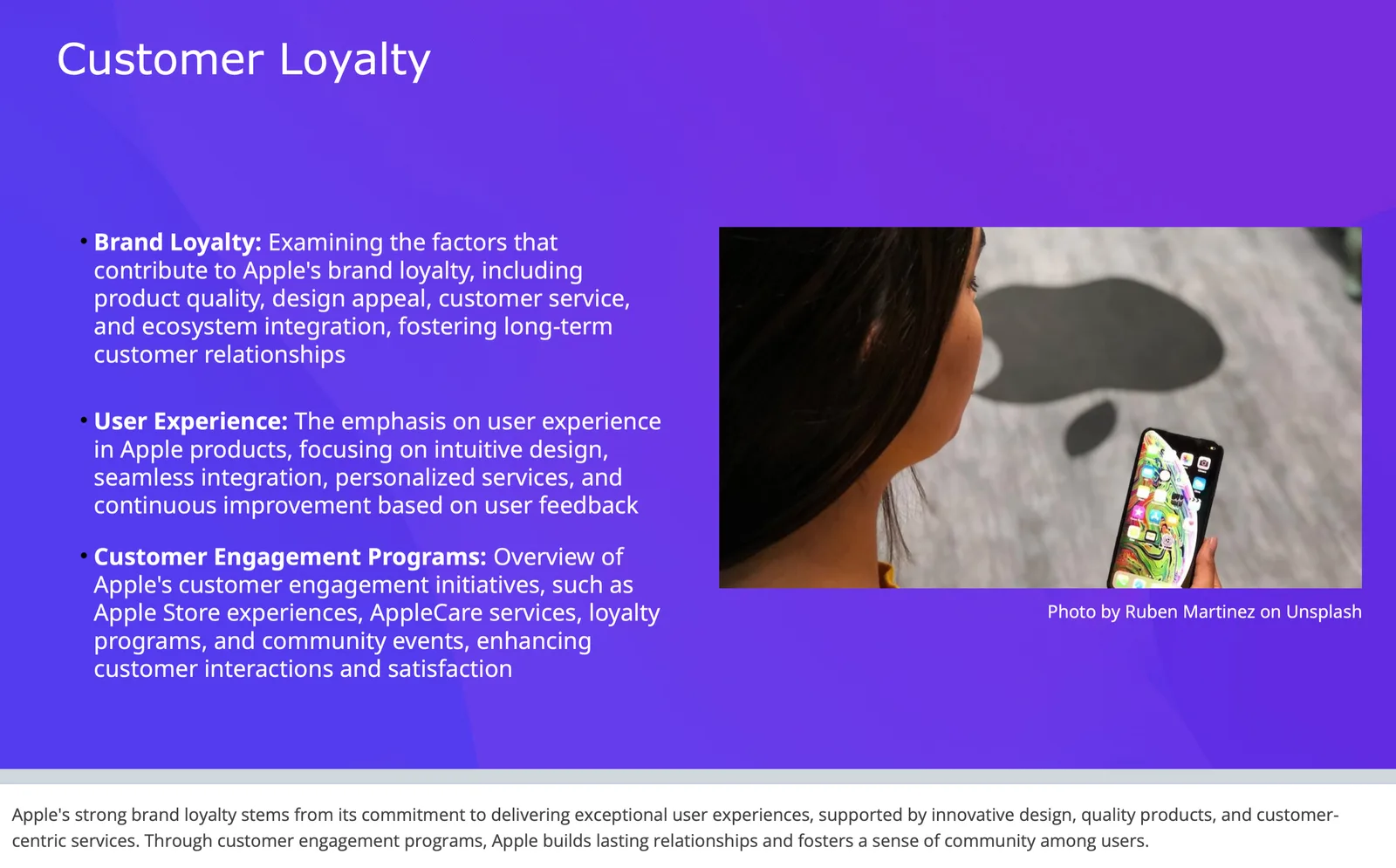
Revenue, and how each deck ended
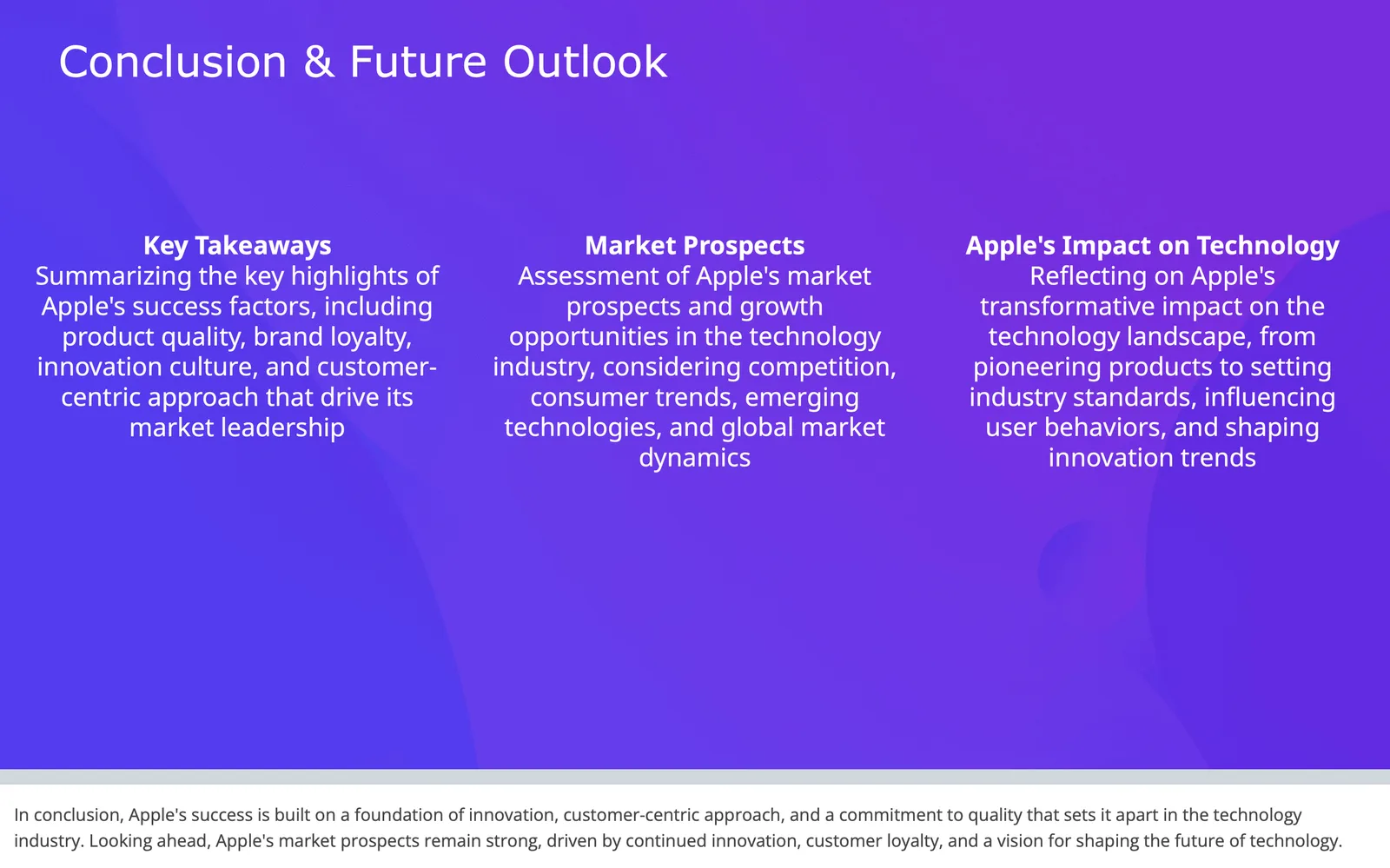
The two tools diverged here. ChatGPT built a chart; SlidesGPT produced a text-and-image slide for the same request, so if a chart is essential you should ask for one explicitly. SlidesGPT then closed with a conclusion and an outlook, which most business and academic decks need.
What ChatGPT does well
ChatGPT is the stronger writing partner, and it is not close. It reasons about your audience, argues a position, tightens a narrative, and rewrites a weak section on request. For working out what a deck should actually say, and in what order, it is an excellent thinking tool. It also handles research, tone, and translation in the same conversation.
- Excellent at outlining, narrative, and slide copy
- Reasons about audience, structure, and argument
- Handles research, tone, and translation in one place
Where SlidesGPT is different
SlidesGPT turns that content into a deck. Asking ChatGPT alone for a presentation typically leaves you with text to paste into PowerPoint and format by hand; its code tool can emit a basic .pptx, but the result is plain. SlidesGPT applies layouts, hierarchy, and imagery, lets you preview the full deck for free, and exports an editable PowerPoint, Google Slides, or Keynote file. It also builds from a PDF or a YouTube video, not just a prompt.
Which should you choose?
In practice, use both. Think through the story with ChatGPT, then let SlidesGPT build the deck. Because SlidesGPT is available as an app inside ChatGPT, you can do both in the same conversation and still download an editable file at the end.
FAQ
Generate your first deck
Turn a topic, a document, or a YouTube link into a structured presentation, then preview the full deck before you decide. Free to start.
Create a presentation