Create presentations inside Claude
Add SlidesGPT as a connector and chat with Claude to create beautiful presentations. SlidesGPT on Claude builds a complete deck with beautiful layouts and images, and a PowerPoint file download.
Presentations you can build with SlidesGPT in Claude
Start with a prompt like:
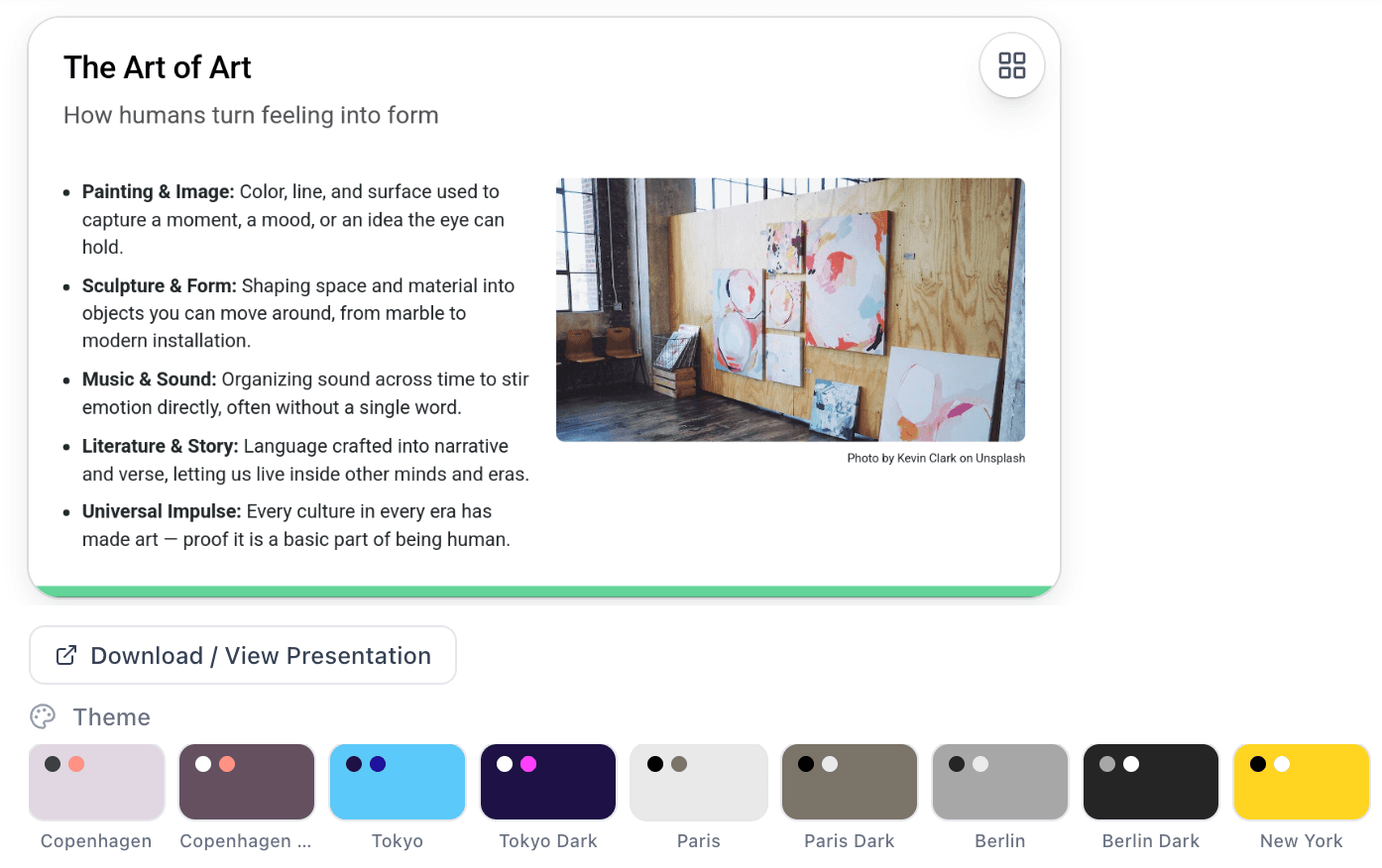
“Make a presentation about art using SlidesGPT.”
How SlidesGPT in Claude works
Three steps from a Claude account to a finished deck.
Sign in to Claude
Create a Claude account or sign in to an existing one. The SlidesGPT connector works on any Claude plan.
Connect SlidesGPT
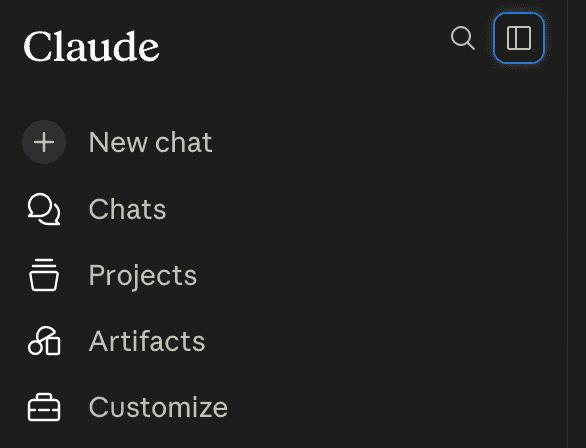
Click Add to Claude to open the connector directly, or in Claude open Customize, then Browse plugins, then Connectors, and search for SlidesGPT.
Create your slides
Start a chat and describe the deck you need. Review it in the carousel and download the PowerPoint file.
Connecting SlidesGPT in Claude
Add it with the one-click deeplink, or from Claude's Customize menu.
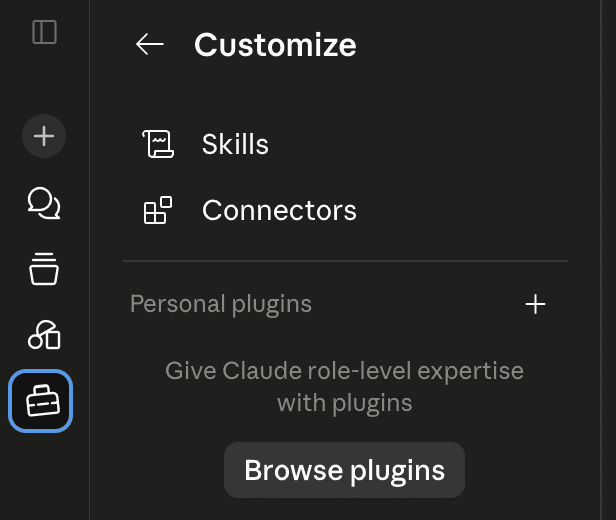
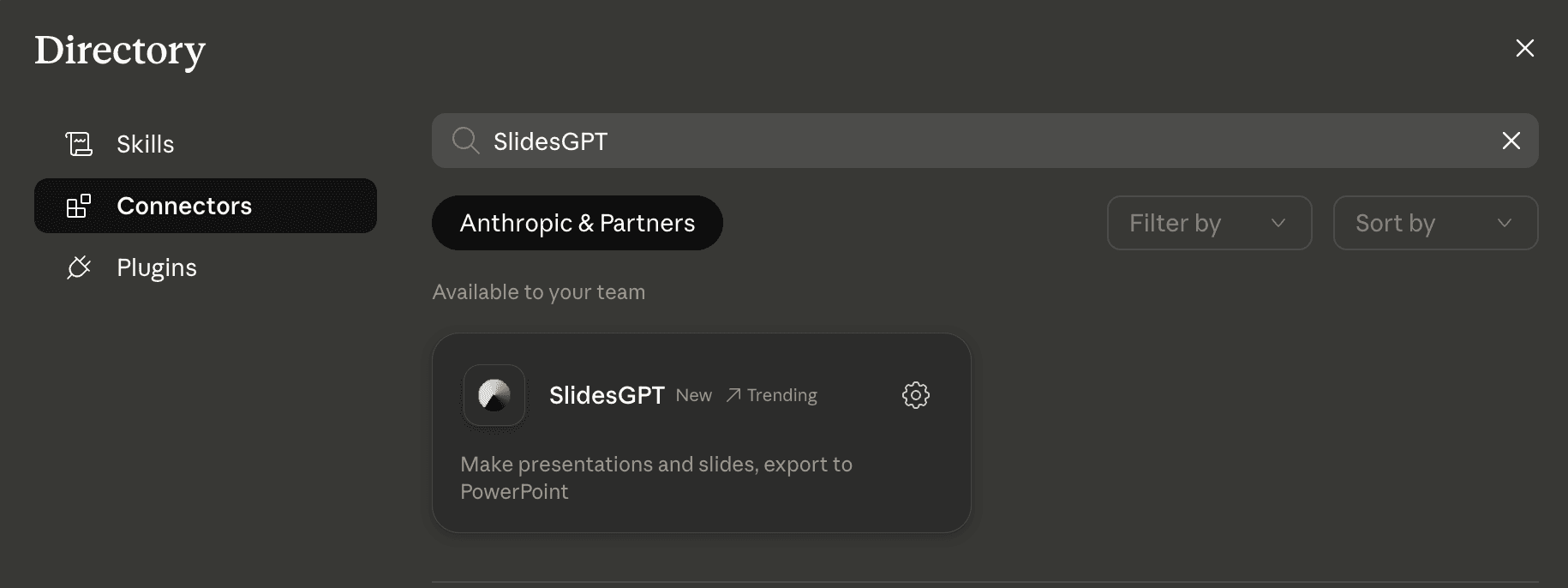
Watch: set up SlidesGPT in Claude
A short walkthrough of connecting SlidesGPT and creating your first presentation.
What you can ask SlidesGPT to do
No setup or commands to learn. Just chat with Claude the way you normally do, and SlidesGPT does the work.
Make a presentation
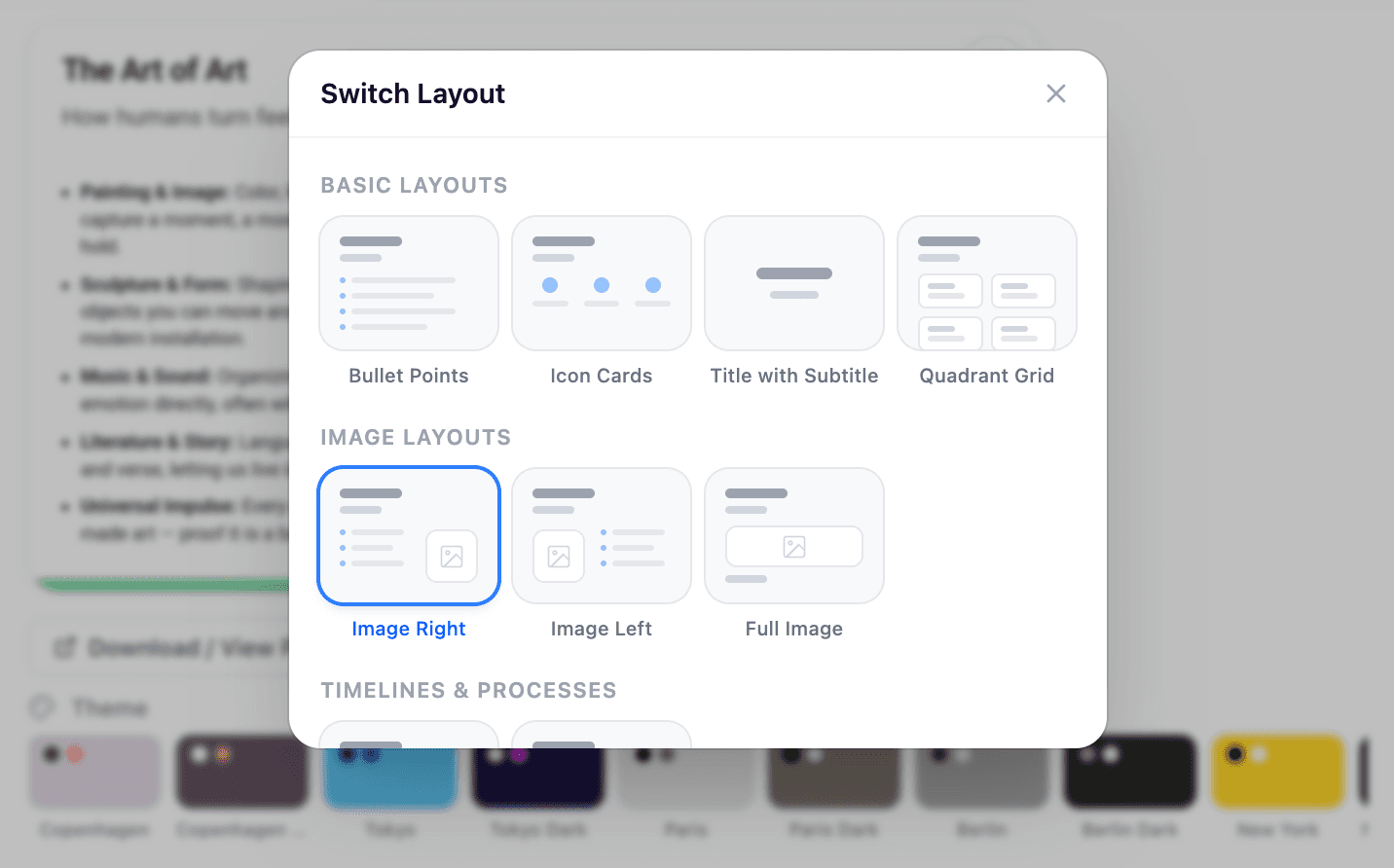
Tell SlidesGPT what your presentation is about and it builds a complete slide deck for you, with fitting layouts and images on every slide. Flip through it right in the chat and download it as a ready-to-use PowerPoint file.
Change Theme
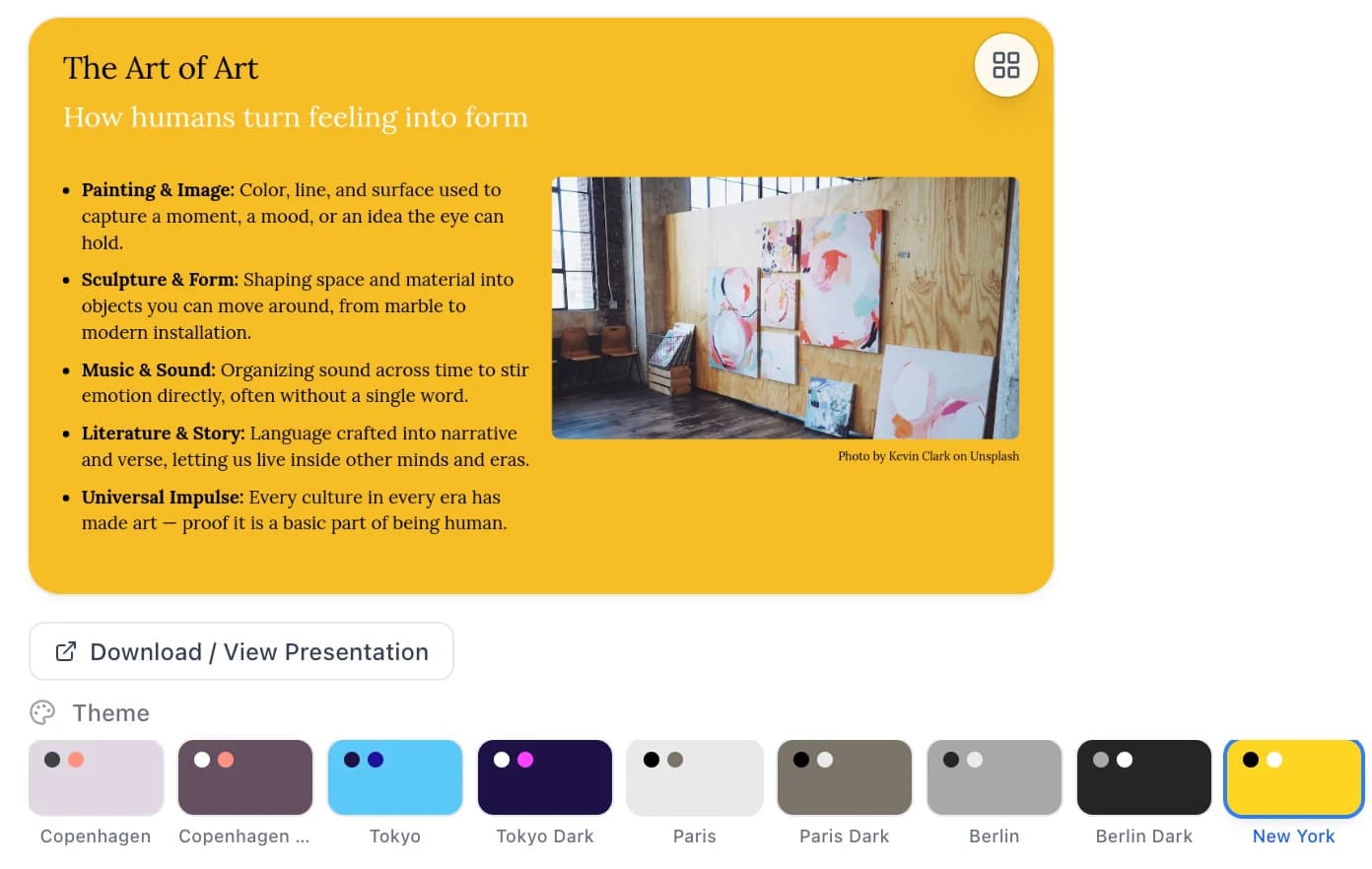
Already have a deck? Ask for a different look and SlidesGPT restyles all your slides at once, updating the colors, fonts, and background. Your text and content stay exactly as they were.
18 built-in themes
Pick any of these in the chat to instantly restyle your entire deck.
Urban
Copenhagen
Copenhagen Dark
Tokyo
Tokyo Dark
Paris
Paris Dark
Berlin
Berlin Dark
New York
New York Dark
LA
LA Dark
Zürich
Zürich Dark
Shanghai
Shanghai Dark
Gradient
Cosmic Pulse
Cosmic Pulse Dark
Start creating slides in Claude
Add the connector once and ask for a deck whenever you need one.
FAQ
Need more detail? The setup guide covers connection, troubleshooting, and data handling.